SharePoint Custom Forms - An Admin’s Survival Guide
Intro: What’s the deal with custom SharePoint forms?
SharePoint has this awesome little feature: you can take a boring list and slap a custom form on top of it with Power Apps. This way you can customize the form of a SharePoint list. With all the possibilities a canvas app has to offer.
That means you can not only customize the input forms visually, but can add functionality. In fact all the functionality that you can express with Power FX, like validate input, conditional visibility, calculations, data lookups across lists or triggering flows. Just think of the possibilities. And it can look awesome too.
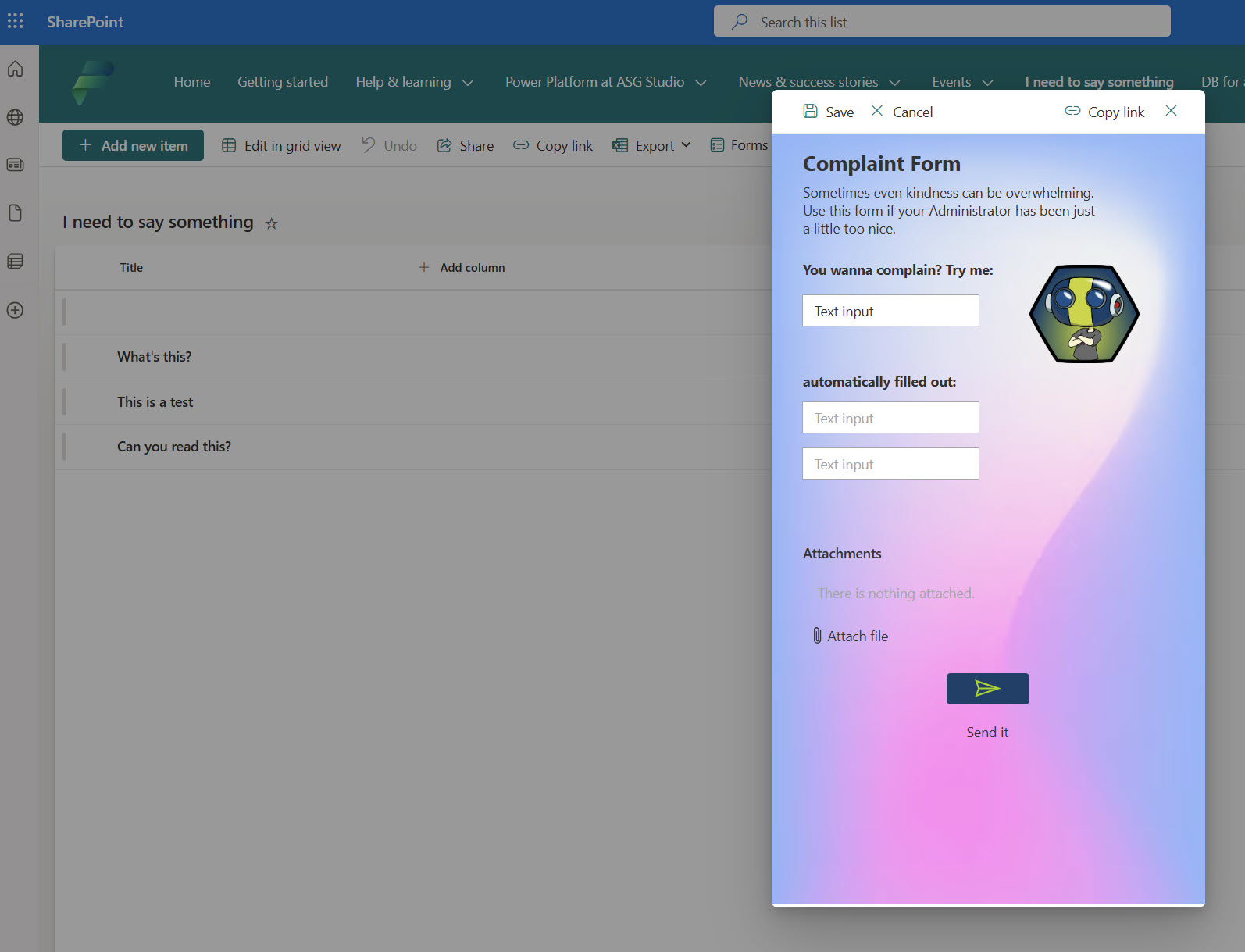
And then, all of a sudden, that “simple SharePoint list” isn’t so simple anymore, it’s a full blown app in disguise. And while that’s awesome for makers, it can also be a headache for administrators, if left unchecked.
Whenever a user clicks “Customize Forms” on a SharePoint list, Power Apps creates a special kind of app in the background. These apps don’t look like your regular canvas apps, but under the hood they’re the same engine. The problem?

-
They live inside the default environment.
-
They can be shared like any other app.
-
They don’t show up clearly in your app inventory unless you know where to look.
Basically, it’s the IT equivalent of your kid hiding broccoli under the mashed potatoes 🥦🤷♂️ You don’t see it, but it’s still there.
Why you should care?
Custom forms often start small but grow into mission-critical beasts:
Risky ownership: The “maker” might leave the company, and boom — your business process vanishes.
Shadow IT: Nobody tells you the vacation approval workflow is now running on a SharePoint list with a custom form until it breaks.
Security gaps: Permissions in SharePoint ≠ permissions in Power Apps. Users might suddenly see more than they should.
If you’re ignoring custom forms, you’re ignoring apps you actually need to govern.
The solution
It is possible to change the environment, where custom SharePoint forms get stored, usually: the default environment. That means, you can create a dedicated environment just for customized SharePoint forms. Most admins I work with, prefer to have such an environment, where nothing else is stored, but these forms. In many organizations users work A LOT with SharePoint, so it’s convinient to have a place, where just those forms are stored, so you know where to look, if something breaks.
And luckily for us, Microsoft release a dedicated security role, called SharePoint custom form maker which only grants the ability to create and use custom SharePoint forms. No flows, no other apps, just forms. This way you can make sure, that everyone who needs access, can use custom SharePoint forms, yet the environment stays clean of other Power Platform objects.
Requirements
To use this custom security role, we need to check some requirements in our environment:
- must be a production enviroment
- Dataverse storage needs to be enabled
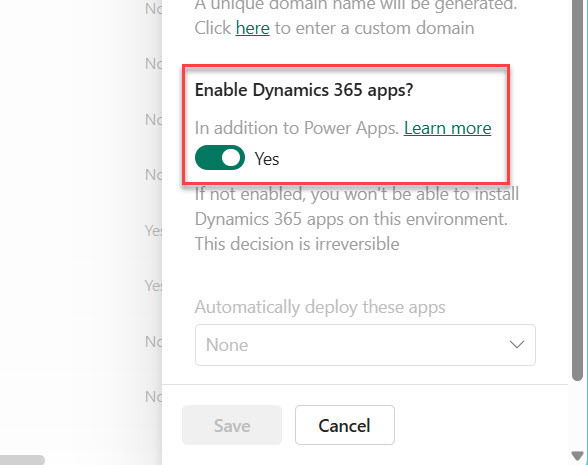
- Dynamics 365 apps need to be enabled
If it’s your first time, just follow my guide to create a new environment, just for custom SharePoint forms. Let’s dive in 🤿
Create the environment
- Head over to the Power Platform Admin Center (PPAC).
- Create a Production environment.
- Make sure to provision Dataverse storage (SPO forms don’t technically need it, but the custom security role does).
- Tick the box to enable Dynamics 365 apps. Without it, you can’t download the SharePoint custom form maker solution.
Install the solution
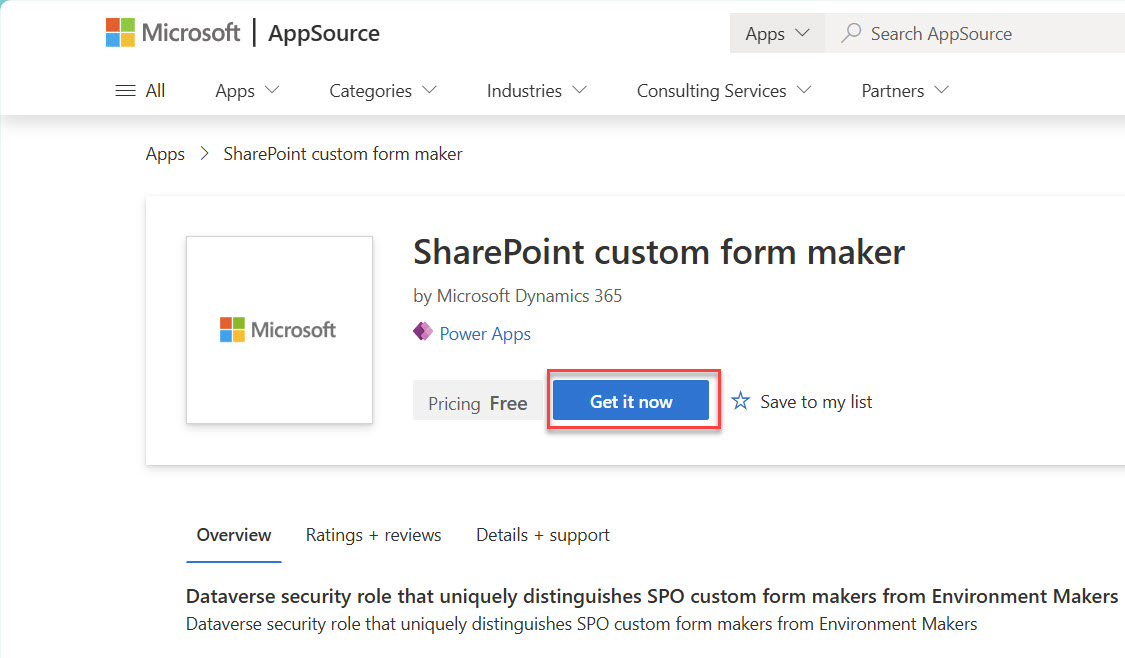
- With your Admin Account, go to the SharePoint custom form maker solution on AppSource and click on “Get it now”
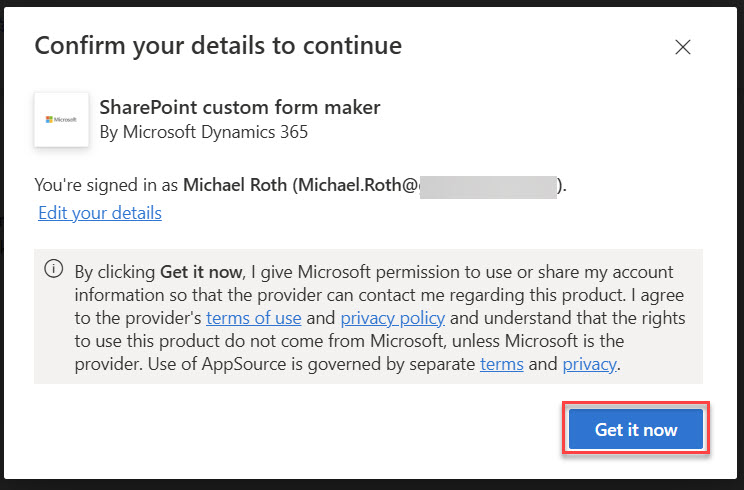
- Confirm your details and click on “Get it now” again
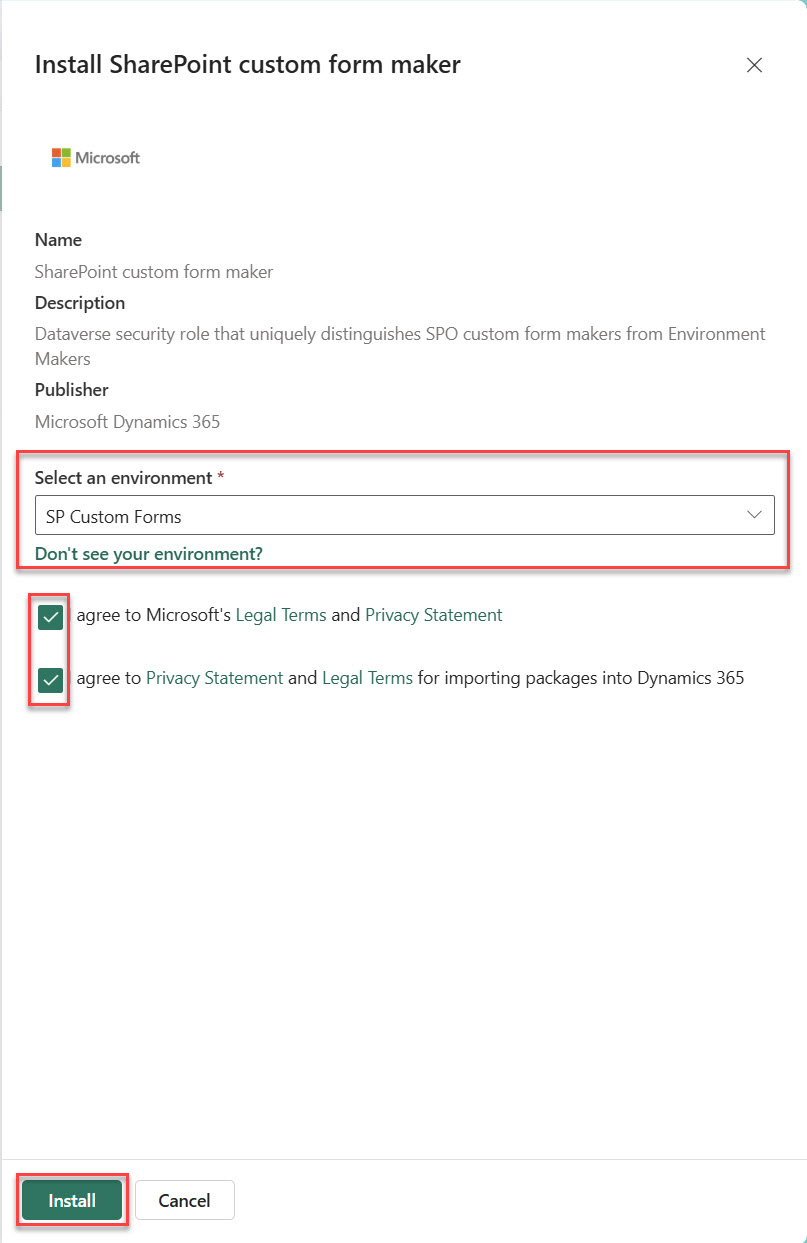
- Select your SharePoint Custom Forms environment and agree to the Legal Terms and the Privacy Statement and click on install. (Don’t ask yourself why there are two checkboxes, they lead to the exact same ressources)
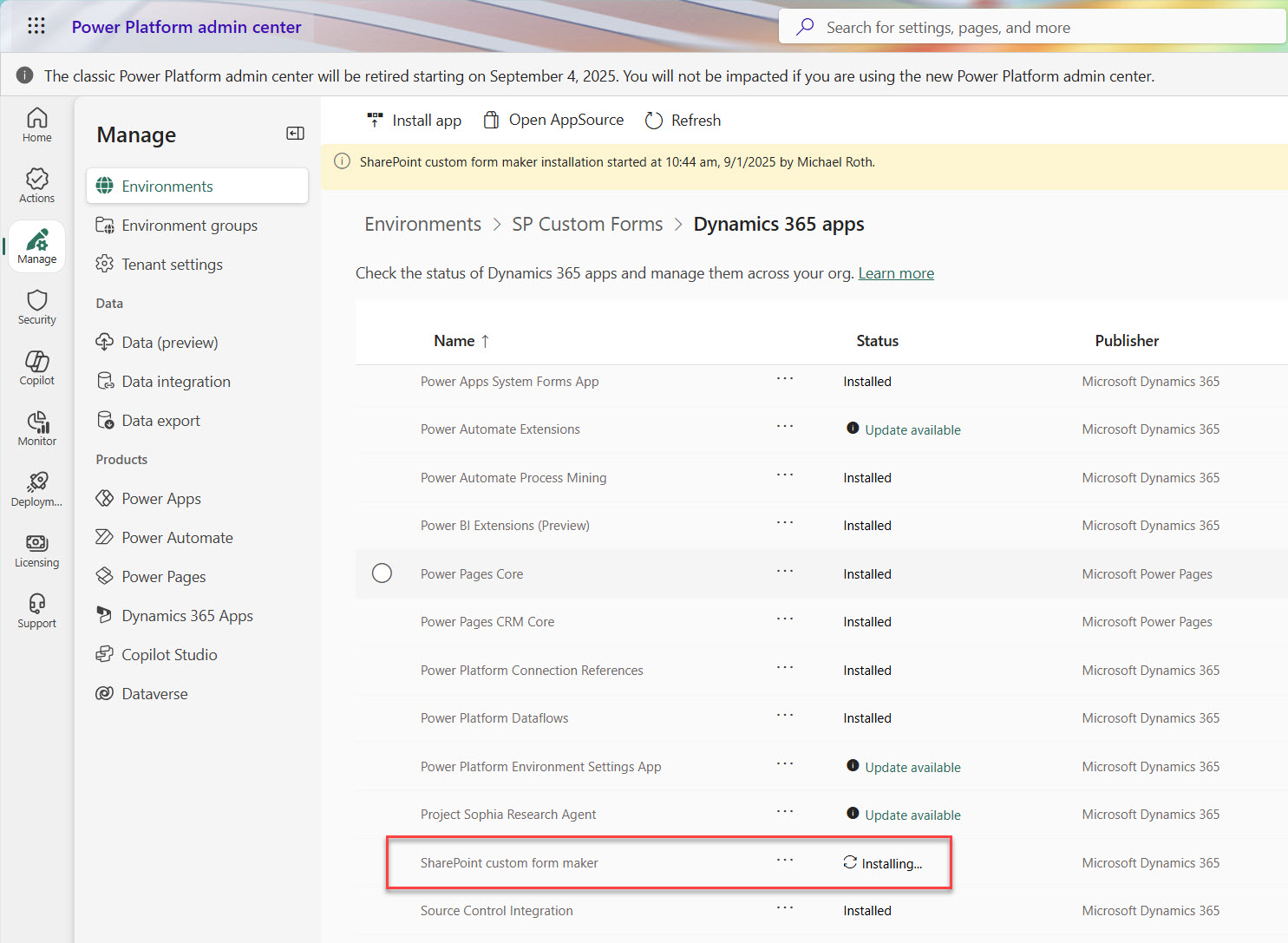
- You will get redirected to the Dynamics 365 apps section of your Power Platform environment and can check the installation status. It takes between 5-10min to finish the installation.
Designate the environment as the SharePoint custom form default (if not already done)
- Start a PowerShell session as administrator.
- Log into the right account with
Add-PowerAppsAccount
and enter your credentials in the upcoming window.
- Use the cmdlet
Set-AdminPowerAppSharePointFormEnvironment -EnvironmentName XXXXX-XXXX-XXXX-XXXX-XXXXXXXXXXXX
to assign all custom SharePoint forms to that environment (note: that only applies to all upcoming created custom forms. All the forms that have been created up til now, will remain where they are).
Assign security roles to users
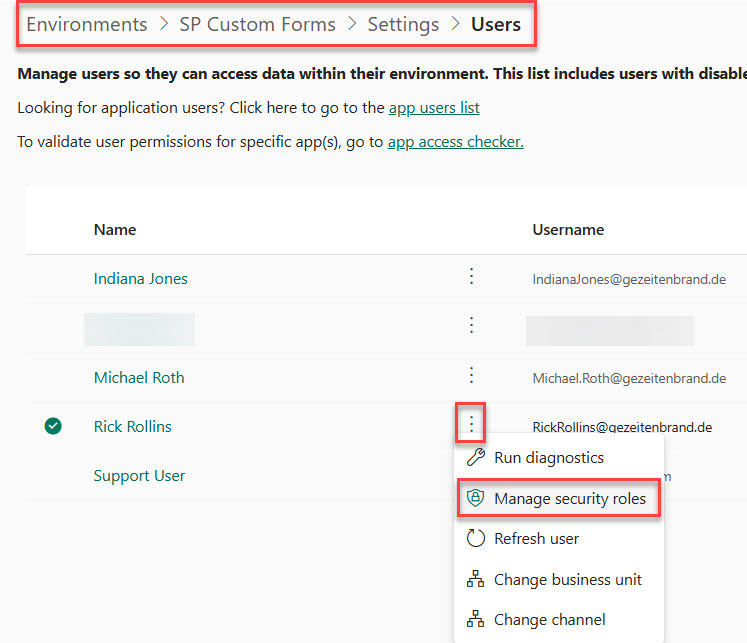
- In the Power Platform Admin Center, select Users and then the Ellipsis menu. Select Manage Security Roles.
- In the upcoming menu, scroll down until you see the security role “SharePoint Custom Form maker”, select it and hit “Save”. The user doesn’t need another security role (e.g. Environment Maker, as in other environments with a dataverse storage).
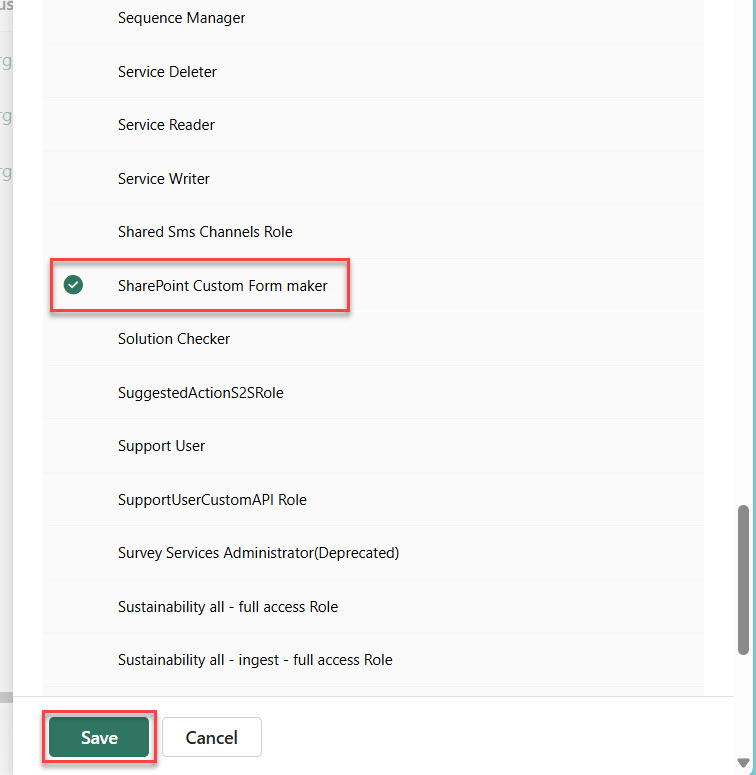
- Now the user can create, edit and use custom SharePoint forms in that environment, but nothing else.
Hint 1: What the user sees, if they try to create something other than a custom SPO form in that environment
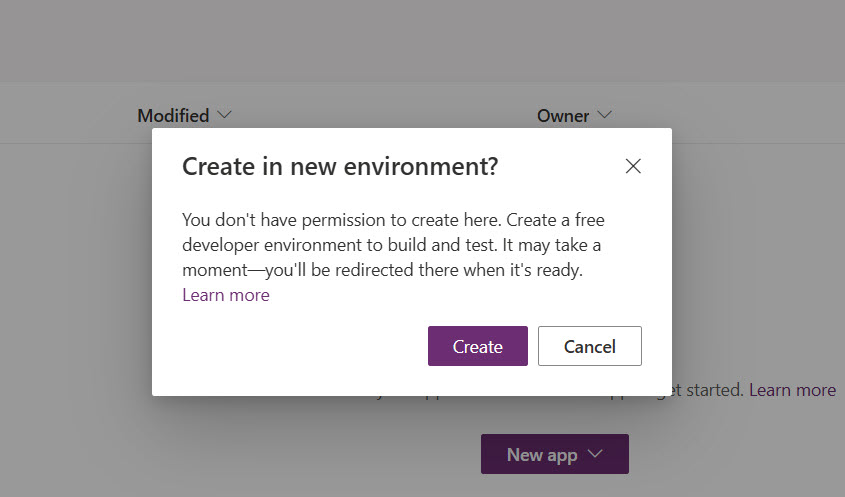
When the user tries to create a canvas app or a model driven app, they get a notification in the maker studio, asking them if they want to switch environments:
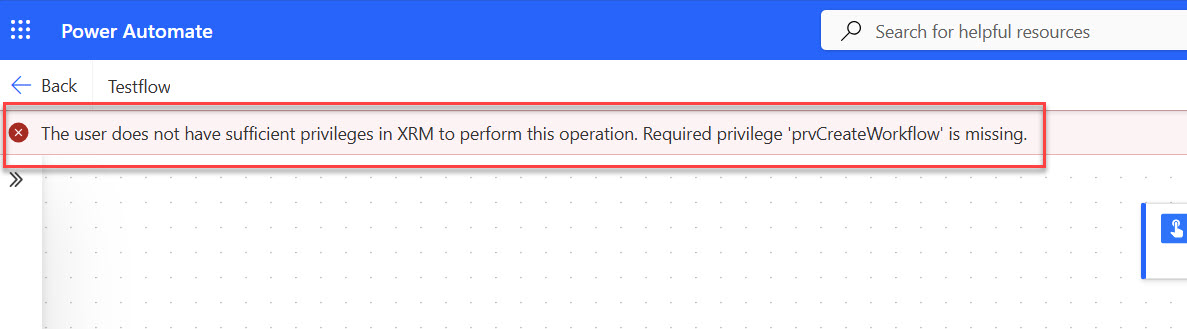
In the Power Automate maker studio it’s not that obvious, the user get a notification banner at the top of the screen, as soon as they enter the flow designer:
Hint 2: How to migrate old custom SharePoint forms
There is a brilliant open-source tool called FlowPowerAppsMigrator, created by Denis Molodtsov. It helps you move custom forms (and flows) from one environment to another. Exactly what you need when cleaning up old forms that still live in the Default environment. Denis provides a great walkthrough and video on youtube, so I highly recommend checking that out before starting your migration.
Youz find his repository here, check it out.
🧵 Outro: Your Turn
Custom SharePoint forms can be an amazing way for makers to improve user experience. But without the right governance, they quickly become invisible, risky apps hiding in plain sight.
With a dedicated environment, the SharePoint Custom Form Maker role, and some proactive communication with your makers, you can take control of new forms. And thanks to the community and Denis’ FlowPowerAppsMigrator, you’ve got a path forward for the old ones, too.
So, next time someone clicks “Customize Forms,” you’ll know exactly where that app is going and how to keep it safe.
Questions or remarks? Find me on LinkedIn and BlueSky and let’s talk about governance in a better way.